Photo organizer
Photo organizer for iPhone.
Sort thirty thousand photos without renaming a single file: browse by category, year or album, and make keep-or-delete decisions in one pass.
Free forever No ads, no subscription Core cleanup runs on-device

Organizing is deciding, not dragging
Most photo-organizing advice assumes you will build the perfect structure: named albums, folders by year, tags for every person. In practice, that advice fails at the same point for almost everyone, because a structure is only useful if the effort of maintaining it is smaller than the effort of finding things without it.
TidyByte takes the opposite approach. Organizing is a sequence of small decisions: keep this, delete that, put this one in an album. Made quickly, one photo at a time, those decisions reduce a library faster than any folder scheme, and the only structure you have to maintain is the albums you already cared about.
Nothing is renamed, moved or re-imported. Your library stays exactly where iOS expects it, so Photos, backups and other apps keep working.
Three ways into a large library
-
By category
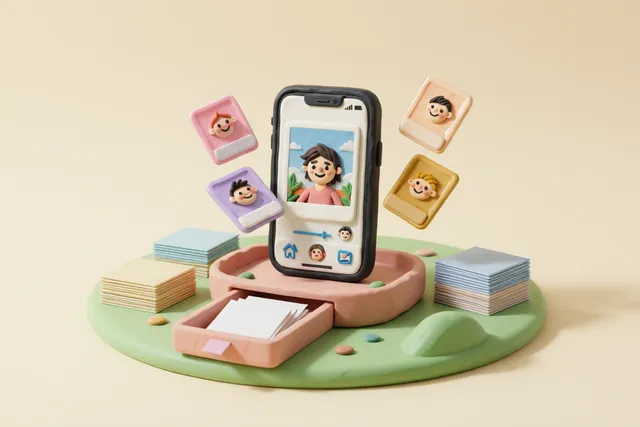
Every photo is classified on-device with Apple Vision: screenshots, documents, receipts, food, pets, people, and so on. Pick a category and review just those. It is the fastest way to work through a specific kind of clutter without scrolling past everything else.
-
By year
The storage breakdown drills into years, and any year opens as a swipe session. Old years are the easiest to clean because the attachment is lowest and the volume is highest.
-
By album
Albums you already keep — trips, family, work — open as decks too. Adding to an album is one of the three swipe directions, so filing and deciding happen in the same gesture.
Why swiping works when grids do not
A grid invites browsing. A single card invites a decision. That is the whole trick: by showing one photo at a time, with keep and delete as the only two easy options, the app converts a vague intention (“I should clean up my photos”) into a stream of small, finished actions.
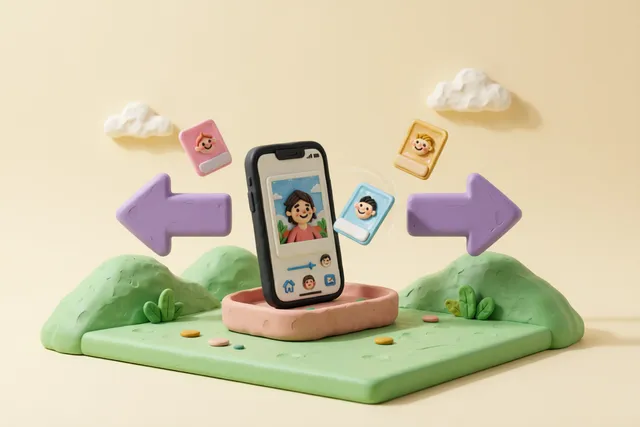
- Swipe right to keep, left to delete, up to add to an album.
- Undo the last decision if you change your mind, all the way back to the start of the session.
- Nothing is deleted during the session. Choices collect on a review screen, and the deletion happens once at the end.
- Skip whole sessions if you are not in the mood; your progress on individual photos is remembered.
Sessions are bounded, so you can clean a few hundred photos in ten minutes and stop. The app remembers what you have already swiped, so nothing comes back for a second opinion unless you ask it to.
Where to start organizing
If the library feels too large to start, begin with the categories that carry no emotion. They are the ones where you will make the fastest progress and see the clearest result.
- Screenshots first: high volume, low sentiment.
- Duplicates second: no judgement required.
- Blurry and dark shots third: quick decisions, visible progress.
- Then the swipe deck on the oldest year you have, which is where the volume is.
After one pass, most people find that the library is small enough to browse again — which is the actual goal of organizing.
How it compares
| TidyByte | Apple Photos | Typical paid organizer | |
|---|---|---|---|
| Automatic classification | On-device Vision categories | Search and Memories | Cloud tagging |
| Organizing as a decision workflow | Swipe keep, delete or album | Manual selection | Mostly manual |
| Organizes by year and album | Yes, deep links into a swipe session | Yes | Sometimes |
| Leaves files where they are | No moves, no renames | Not applicable | Sometimes re-imports |
| Where classification runs | On-device with Apple Vision | On-device | Often uses a server |
| Cost | Free | Free | Subscription |
-
Free forever
No subscription, no in-app purchases, no ads.
-
Private by design
No TidyByte account, backend, analytics SDK, ads, or tracking.
-
On-device only
iPhone-library cleanup runs locally; optional Google Photos connects directly to Google.
-
Open source
MIT licensed on GitHub, so every claim is auditable.
Frequently asked questions
What is the fastest way to organize thousands of photos on an iPhone?
Review them as decisions rather than browsing them. TidyByte loads a deck of photo cards and you swipe right to keep, left to delete, or up to add to an album, which processes a library far faster than tapping through grid views and selecting items one by one.
Does TidyByte move or rename my photos?
No. It never moves, renames or re-imports files, so your library stays exactly where iOS expects it. Organizing happens through albums and deletions, which means undo works the way it does everywhere else in Photos.
How does it sort photos by category?
Each photo is classified with Apple Vision: screenshots, documents, receipts, food, pets, people and more. Photos available on-device are analyzed locally; iCloud-only items may need to download first. Photos are not sent to TidyByte.
Can I organize only one album or one year?
Yes. Pick any album, or drill into a year from the storage breakdown and jump straight into a swipe session scoped to that subset. That is usually the difference between an organizing session you finish and one you abandon.
Does it work on iPad as well?
Yes. TidyByte is a universal app for iOS 17 and later, and the organizing flows work on both iPhone and iPad, with the swipe layout adapting to the larger screen and all iPad orientations.
Every cleanup tool, in one free app
-
Photo cleaner
One free app that clears every kind of photo clutter — duplicates, similar shots, screenshots, screen recordings, chat media, blur, bursts, Live Photos and oversized videos. iPhone-library cleanup runs on-device.
-
Screenshot cleaner
Screenshots pile up faster than any other kind of photo. Find them all, review them in one list, clear them in a single pass.
-
Blurry photos
Sharpness, darkness and overexposure scored on-device, with a sensitivity control you can tune. Keep the memories, bin the misses.
-
Storage cleaner
See exactly what is filling your iPhone, then clear it: duplicates, oversized videos, screenshots, blurry shots and Live Photos. Free, with iPhone-library cleanup on-device.
-
Duplicate cleaner
Exact copies matched byte-for-byte, plus near-identical shots grouped by Apple's Vision framework. Review every group, keep the best, delete the rest.
-
Similar photos
Twenty shots of the same moment, one worth keeping. Group them, score them, keep the best — without a subscription.
-
Large files
The few files that eat most of your storage are videos. Sort them by size, decide file by file, then delete or compress.
-
Burst photos
A ten-second burst is thirty photos, and twenty-nine of them are waste. Group them, keep the best frame, clear the rest.
-
Live Photo converter
Every Live Photo carries a short video you rarely watch. Keep the still, lose the motion, keep the metadata.
-
Video compression
4K clips are what fill iPhones. Re-encode them at a preset you choose, check the real file size, then decide what to do with the original.
-
Image compression
Re-encode the photos that are larger than they need to be, choose the quality, and see exactly how many megabytes each one returned.
-
Free, no subscription
No paywall on the delete button. No weekly plan. No ads between photos. Free because there is no TidyByte backend, ad system, or subscription to fund.
-
Screen recordings
Screen recordings are the largest files nobody remembers making. Find every one, see its size, and clear them in a single pass.
-
Chat media
Every chat app quietly saves photos and videos into your library. Review them by album and clear the ones you never meant to keep.
-
AI photo search
Describe what you are looking for. Local AI searches the iPhone library on-device and works offline for photos already available there. Optional Google Photos is separate in enabled builds.
Organize a library you actually enjoy.
Download TidyByte Free and turn sorting thirty thousand photos into a few evenings of swiping.